Difference between revisions of "Lighting the RGB LED"
(Created page with "==How to lighting the RGB LED== * Librarys:https://github.com/adafruit/Adafruit_NeoPixel Adafruit_NeoPixel from Adafruit * Download librarys and put it in the libraries...") |
(→How to lighting the RGB LED) |
||
| (5 intermediate revisions by 2 users not shown) | |||
| Line 1: | Line 1: | ||
==How to lighting the RGB LED== | ==How to lighting the RGB LED== | ||
| − | + | === Install Library=== | |
| − | * Download | + | # Install library from github: |
| + | * Librarys:[[https://github.com/Makuna/NeoPixelBus NeoPixel_Bus]] from Makuna | ||
| + | * Download libraries and put it in the libraries folder in the installation directory of the Arduino IDE | ||
| − | [[file:LightingLED-1.png]] | + | [[file:LightingLED-1.png]] |
| + | |||
| + | |||
| + | # Install Library by Manage Libraries: | ||
| + | [[File:LightingLED-4.png]] | ||
| + | [[File:LightingLED-6.png]] | ||
| + | |||
| + | === Programe Code=== | ||
* Open Arduino IDE | * Open Arduino IDE | ||
| − | click 'file'->'Example'->' | + | click 'file'->'Example'->'NeoPixel Bus'->'simple' to open the example |
| + | |||
| + | [[File:LightingLED-7.png]] | ||
| − | + | * We need to change some code,Find the code below in the code | |
| − | + | const uint16_t PixelCount = 4; // this example assumes 4 pixels, making it smaller will cause a failure | |
| + | const uint8_t PixelPin = 2; // make sure to set this to the correct pin, ignored for Esp8266 | ||
| − | + | * change to | |
| − | |||
| − | + | const uint16_t PixelCount = 25; // this example assumes 4 pixels, making it smaller will cause a failure | |
| + | const uint8_t PixelPin = 4; // make sure to set this to the correct pin, ignored for Esp8266 | ||
| − | |||
| − | |||
| − | |||
| − | Then add the following code to void setup() | + | * Then add the following code to void setup() |
| − | + | #define LED_POWER 2 | |
| − | + | pinMode(LED_POWER, OUTPUT); | |
| + | digitalWrite(LED_POWER, HIGH); | ||
| − | Compile this program | + | * Compile this program |
[[File:LightingLED-3.png]] | [[File:LightingLED-3.png]] | ||
And download it(Set the serial port and board) | And download it(Set the serial port and board) | ||
Latest revision as of 07:49, 1 October 2018
How to lighting the RGB LED
Install Library
- Install library from github:
- Librarys:[NeoPixel_Bus] from Makuna
- Download libraries and put it in the libraries folder in the installation directory of the Arduino IDE
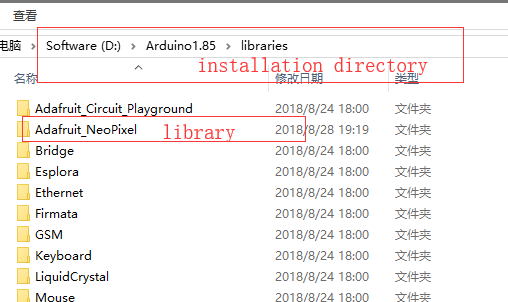

- Install Library by Manage Libraries:


Programe Code
- Open Arduino IDE
click 'file'->'Example'->'NeoPixel Bus'->'simple' to open the example

- We need to change some code,Find the code below in the code
 const uint16_t PixelCount = 4; // this example assumes 4 pixels, making it smaller will cause a failure
 const uint8_t PixelPin = 2;  // make sure to set this to the correct pin, ignored for Esp8266
- change to
 const uint16_t PixelCount = 25; // this example assumes 4 pixels, making it smaller will cause a failure
 const uint8_t PixelPin = 4;  // make sure to set this to the correct pin, ignored for Esp8266
- Then add the following code to void setup()
 #define LED_POWER      2
 pinMode(LED_POWER, OUTPUT);
 digitalWrite(LED_POWER, HIGH);
- Compile this program

And download it(Set the serial port and board)
